
How to Use the Fixtures Page: A Beginner’s Guide to Finding Upcoming Matches
Learn how to use the Fixtures page to browse upcoming football matches, filter leagues and competition types, assess predictability labels, and open a fixture for detailed statistics.
The Fixtures page is a central place to browse upcoming football fixtures across selected leagues. It is designed to help you move from a broad daily schedule to an individual match and its available statistics.
A simple approach works best: choose a day, review the active filters, browse the country or region groups, and select a fixture when you want more detail. The list is live content, so the dates, countries, fixture counts, and matches shown on your screen can differ from examples seen at another time.
Before You Start: What You Will See on the Page
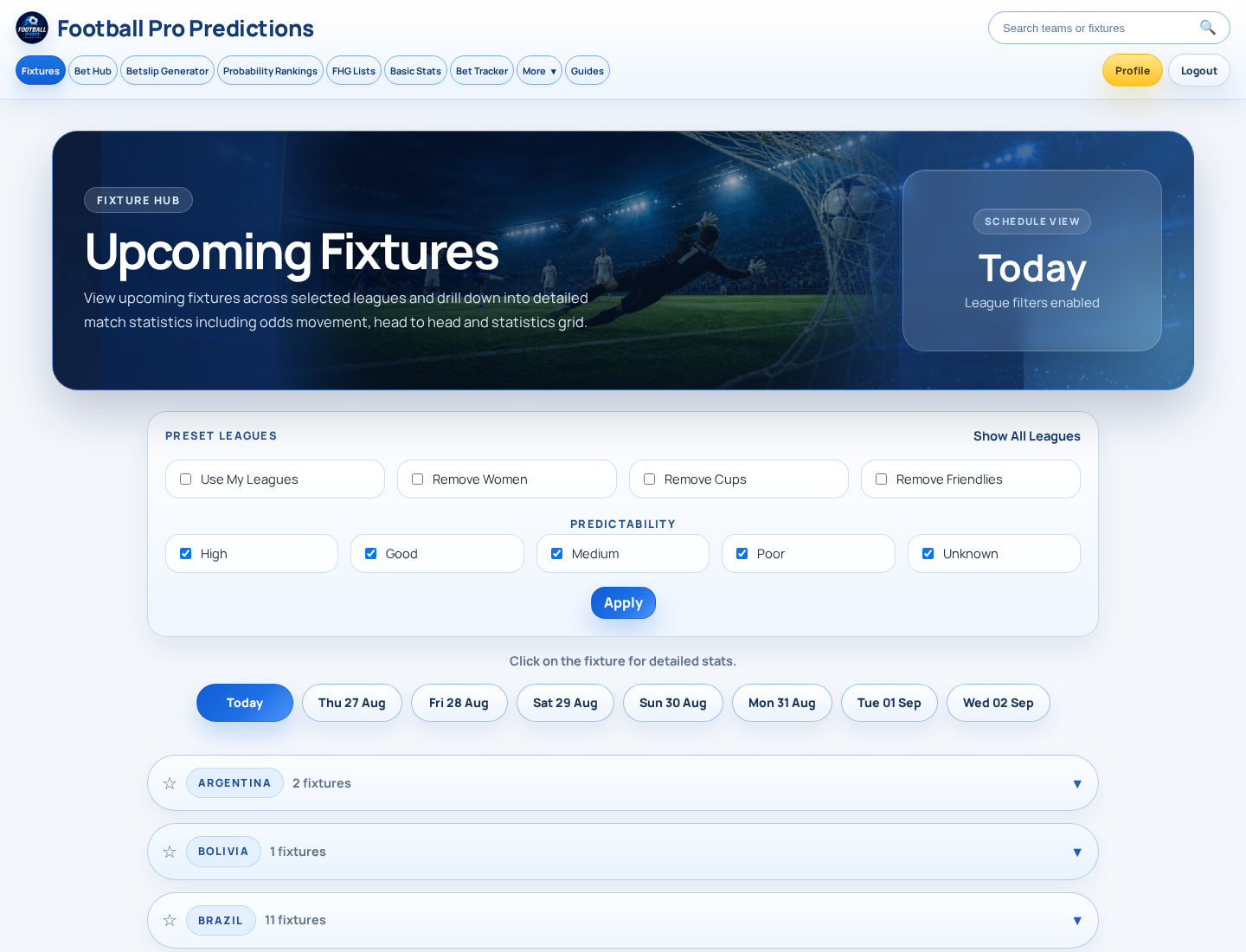
The page is headed “Fixture Hub” and “Upcoming Fixtures.” Its introductory text says you can view upcoming fixtures across selected leagues and drill down into detailed match statistics, including odds movement, head to head, and a statistics grid.
The visible controls are arranged around a Schedule View, league-filter status and presets, Predictability labels, grouped country or region listings, and Previous and Next navigation. The page also displays an Apply button beside the filter area.
Step 1: Choose a Day in Schedule View
Start in Schedule View. The page shows Today and a row of available dates, allowing you to move through the schedule one day at a time. Select the day you want to inspect, then review the fixture groups shown below it.
If you cannot find a fixture, first confirm that the intended date is selected. A match may be scheduled on the previous or following day rather than the day currently displayed. The supplied interface evidence does not establish how the default date is determined, so avoid assuming it will be identical for every user or location.
Step 2: Control Which Leagues Appear
The Fixtures page displays a “League filters enabled” status and a Preset Leagues section. The visible preset controls are Show All Leagues, Use My Leagues, Remove Women, Remove Cups, and Remove Friendlies. These controls are intended to help narrow or broaden the leagues and competition types represented in the listing.
Choose the preset that best matches what you want to browse, then use the Apply control shown on the page. Because the supplied research does not confirm the exact selection logic, treat the labels as their visible purpose rather than assuming precisely which competitions each option includes or excludes.
Step 3: Narrow Results with Predictability
The Predictability section lists five labels: High, Good, Medium, Poor, and Unknown. These labels can be used alongside the other visible filters to focus the fixture list, with an Apply button available in the same filter area.
Step 4: Browse Fixtures by Country or Region
Fixtures are presented in country or region groups. Each visible group includes a country or region name, a fixture count, and a caret control. This structure helps you scan the schedule without working through every competition at once.
Find the relevant country or region, use its on-screen caret control to view the group as available in the interface, and scan the fixtures that appear. A star icon is also displayed beside each group in the researched interface. Its purpose and any sign-in requirement have not been confirmed, so it should not be treated here as a favourite or follow feature.
Step 5: Open a Fixture for Match Details
When you find the match you want, select the fixture. The page instruction states, “Click on the fixture for detailed stats.” The Fixture Hub description says the detailed match information can include odds movement, head-to-head information, and a statistics grid.
Data depth may vary between fixtures. The supplied page text describes the types of information available but does not establish that every module appears for every match, competition, or market. Treat the fixture detail page as the source of truth for the information available for that specific match.
A Simple Workflow for Beginners
How to Read the Page Without Overinterpreting It
| What you see | What it means | What to do |
|---|---|---|
| A fixture is not listed | It may be outside the selected date or filtered out. | Check the date, league presets, and Predictability options. |
| A country or region has a fixture count | It indicates the number displayed for that group in the current view. | Use the group’s caret control and inspect the listed fixtures. |
| A Predictability label | It is a visible classification used for filtering. | Use it to organise browsing; do not treat it as certainty. |
| Odds movement or head-to-head text | The Fixture Hub says detailed views can include these modules. | Open the individual fixture and check what is available there. |
| Previous and Next controls | Additional list navigation is shown on the page. | Use them when available; the precise pagination scope has not been verified. |
Odds-related information is informational and can change. It should not be read as a recommendation or a certain indicator of what will happen in a match.
Troubleshooting: When You Cannot Find a Match
Frequently Asked Questions
Key takeaways
- Begin with the date: confirm the selected Schedule View day before searching further.
- Review league presets and the “League filters enabled” status before assuming a fixture is unavailable.
- Use country or region groups and their fixture counts to navigate a busy schedule.
- Treat Predictability labels as filtering aids, not outcome guarantees.
- Open the fixture for the match-specific detail view, including any available odds movement, head-to-head information, and statistics grid.
Sources and further reading
- Football Pro Predictions — Football Pro Predictions
Put This Guide Into Practice
Use the live research tools to compare upcoming fixtures, probabilities and available prices. Always check current odds and stake responsibly.